
Microsoft OneDrive Training
 Instructor-Led Microsoft 365 Training
Microsoft OneDrive
Training with an expert
Hands-on, instructor-led OneDrive courses: delivered at your premises or at our training venues, tailored to the way your team stores, syncs and shares files.
19+ yearsTraining experience
1-day coursePublic or onsite
UK-wideYour premises or our venues
.svg/250px-Microsoft_Office_Excel_(2025%E2%80%93present).svg.png) Budget-2026.xlsx
Budget-2026.xlsxSome of our clients


















Store, sync and share your files from anywhere
Microsoft OneDrive is the cloud storage built into Microsoft 365. Used well, it keeps every file backed up, available on any device and easy to share securely, but many teams still email attachments and lose track of the latest version.
Our trainers deliver a practical, instructor-led OneDrive course that builds the skills needed to manage, sync and share files with confidence, and every course can be customised to focus on the way your team works.
- Free training needs analysis before your course
- Tailored with your real workplace scenarios
- Free post-course telephone & email support
Files & folders
Upload, organise and find your files, and open them from any device.
.svg/250px-Microsoft_Office_Teams_(2025%E2%80%93present).svg.png)
Sharing
Share files and folders securely and control who can view or edit.
.svg/120px-Microsoft_Office_Word_(2025%E2%80%93present).svg.png)
Co-authoring
Work on the same Office document at the same time as colleagues.
.svg/250px-Microsoft_Outlook_Icon_(2025%E2%80%93present).svg.png)
Outlook
Send OneDrive links instead of attachments, so everyone sees the latest version.
Courses & Fees
One-day Microsoft OneDrive course
Join a public course at one of our venues in Preston, Liverpool, Manchester, Leeds or London (subject to demand), or book a tailored course delivered at your premises.
Public course
OneDrive Essentials
£195 + VAT
1 day · per delegate
- Store, organise & find files
- Sync files to your computer
- Share & collaborate securely
At your premises
Tailored Onsite
£645 + VAT
1 day onsite · up to 8 attendees
- Built around your team’s real scenarios
- Delivered UK-wide at your workplace
- Reference materials for every attendee
*Prices are per delegate for public courses and per course for onsite training. Book 2 or more places on the same public course and receive significant discounts.
More than just a training day
Tailored Content
Built around your team’s real workplace scenarios
Expert Trainers
Instructor-led, at the pace of your attendees
Reference Materials
Handouts and supporting materials for every attendee
Certificates
Course completion certificate for each attendee
Free Aftercare
Post-course telephone & email support
Course outline
What the course covers
Designed for anyone who wants to store, sync and share files confidently with OneDrive, so they can reach their work from anywhere and collaborate without emailing attachments.
Module 1
Getting Started with OneDrive
- What OneDrive is and how it fits with Microsoft 365
- Sign in and explore OneDrive on the web
- Use the My files, Recent and Shared views
Module 2
Managing Files and Folders
- Upload and create files and folders
- Move, copy, rename and delete files
- Search for files and use Favourites
Module 3
Syncing with Your Computer
- Set up the OneDrive sync app
- Use Files On-Demand to save space
- Understand sync status icons
- Back up your Desktop and Documents folders
Module 4
Sharing and Collaborating
- Share files and folders with links
- Set view or edit permissions
- Co-author Office documents in real time
- Manage and stop sharing
Module 5
Version History and Recovery
- View and restore previous versions
- Recover files from the Recycle Bin
- OneDrive, SharePoint or Teams: where to save files
Before you start
Pre-requisites
Delegates should be comfortable using Windows: launching and closing programs, finding information stored on the computer, and managing files and folders.
Recent Microsoft courses



Inclusive by design
Training created for every kind of brain
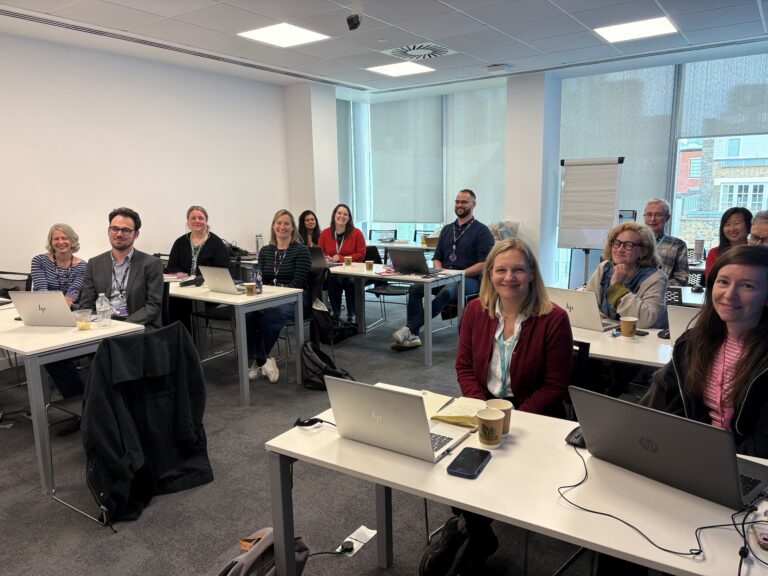
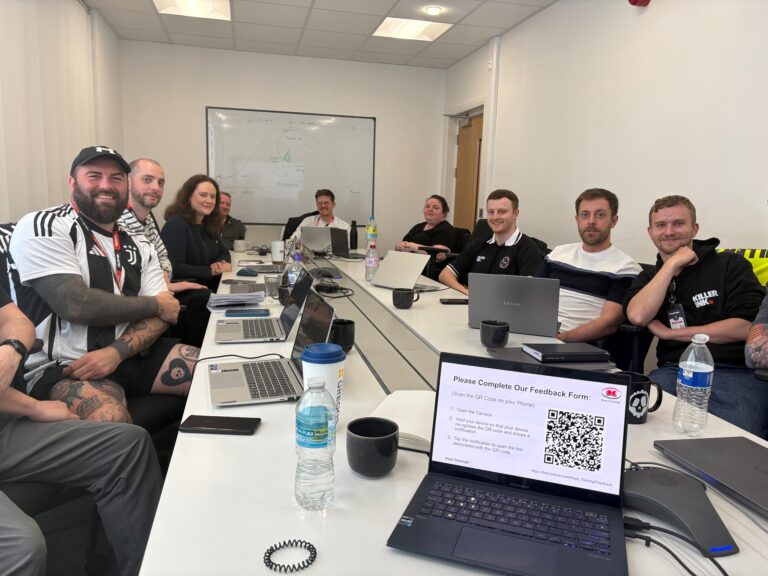
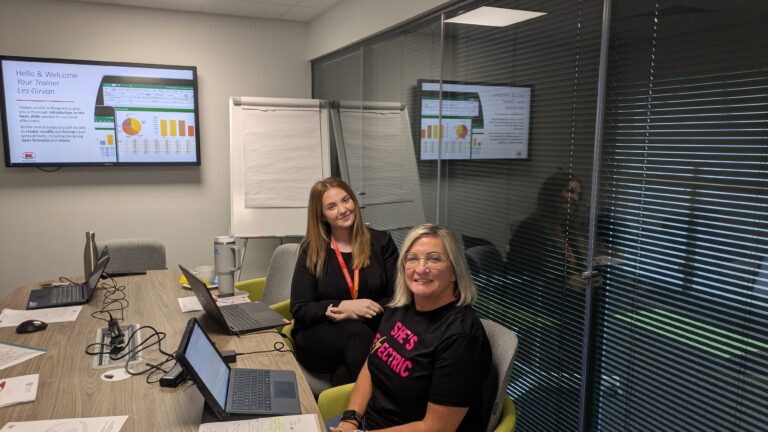
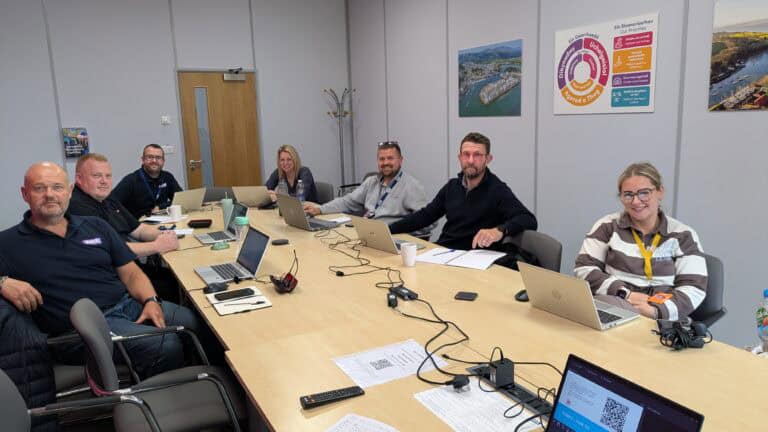
Technical training moves quickly – new ribbons, new features, new ways of working. That is exactly why every Keys Training Microsoft course is built for different types of learners, including neurodivergent attendees and people with disabilities, so nobody is left behind at the keyboard.
Whether someone has dyslexia, ADHD, autism, a hearing or visual impairment, or simply learns best by doing rather than watching, our trainers adapt the pace, the screen and the exercises to the people in the room – on-site or remote.

Every course has been assessed by accessibility experts to make sure it is accessible and beneficial for all.
01
Hands-on, not lecture
Everyone works on their own machine, step by step. Skills are built by doing OneDrive tasks, not by trying to remember a demo.
02
Screen-friendly delivery
Zoomed-in demonstrations, high-contrast views and live captions on remote sessions, so every click is easy to follow.
03
Paced to the room
Small groups with regular catch-up points – the trainer does not move on until every screen matches theirs.
04
Guides that work afterwards
Plain-language step guides and practice files, available in alternative formats on request, so people can revisit at their own speed.
Good to know
Frequently asked questions
What will my team learn in a Microsoft OneDrive training course?
Your team will learn to store, organise and find files in OneDrive, sync files to their computer, share files and folders securely with the right permissions, and work on the same Office documents at the same time as colleagues. The course also covers version history and recovering deleted files.
What is the difference between OneDrive, SharePoint and Teams?
OneDrive is for your own work files, which you can share with specific people when needed. SharePoint and Teams are for files that belong to a team or project. The course explains when to use each, so files end up in the right place. For more on team sites, see our SharePoint training course.
Can the course be tailored to how our team uses OneDrive?
Yes. Onsite courses start with a free training needs analysis so our trainer can build the day around your team’s real workplace scenarios, such as sharing files with clients, moving away from shared drives or setting up sync on new laptops.
Ready to get your team working smarter with OneDrive?
View upcoming scheduled dates, or speak with a training advisor to arrange a tailored OneDrive course for your team.
Or call us on 0845 402 2781 to speak with one of the team today.